3.2.14 ICW Cloud
1.ICW Cloud Introduction
ICW Cloud allows the developer to upload, save and share the program, which be stored in cloud. The Developer could easily choose programs in ICW Cloud to publish instantly or share with others.
2.Upload file to ICW Cloud
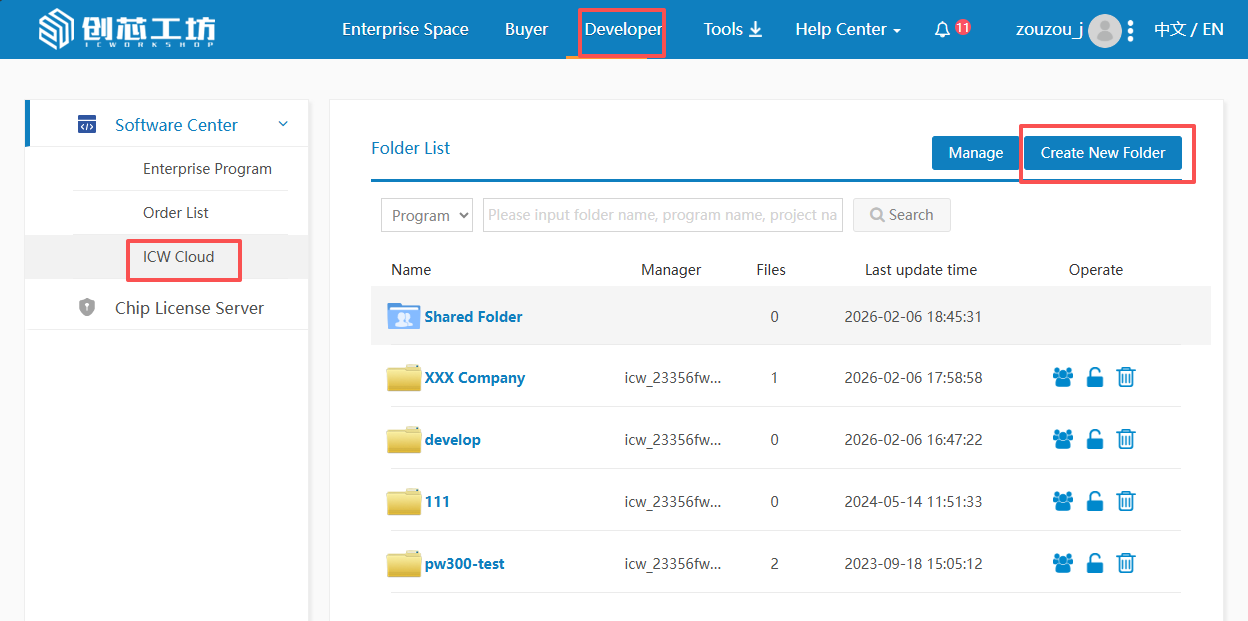
Click “Developer” – “Software Center” – “ICW Cloud” – “Create New Folder” to create your own cloud folder.
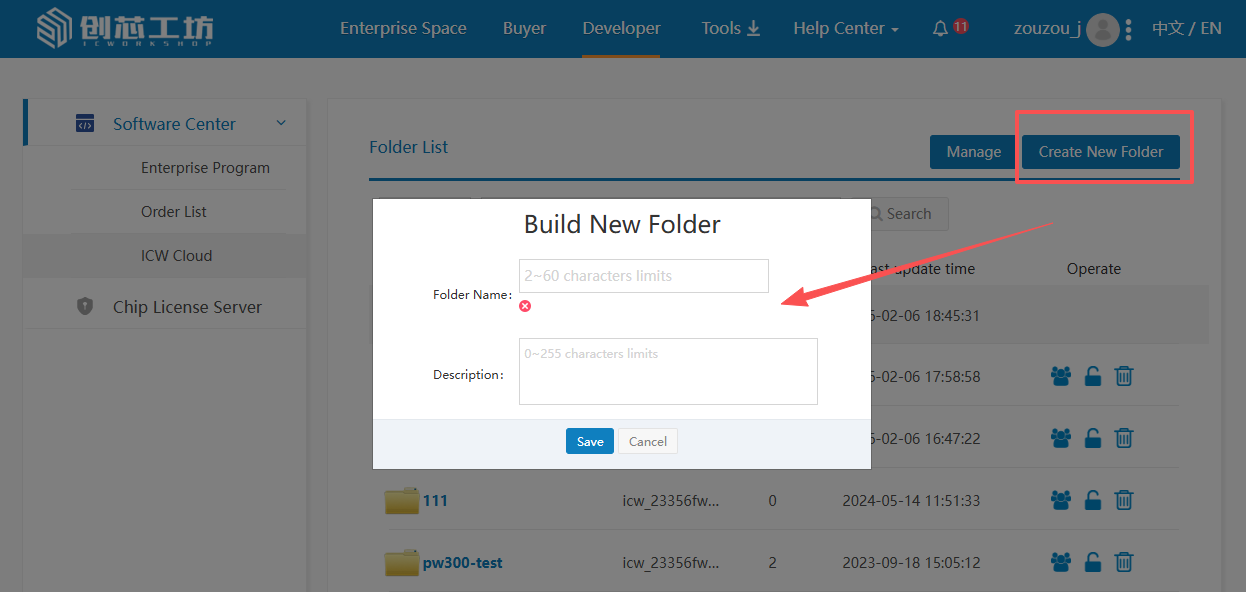
Please fill in file folder name and basic introduction:
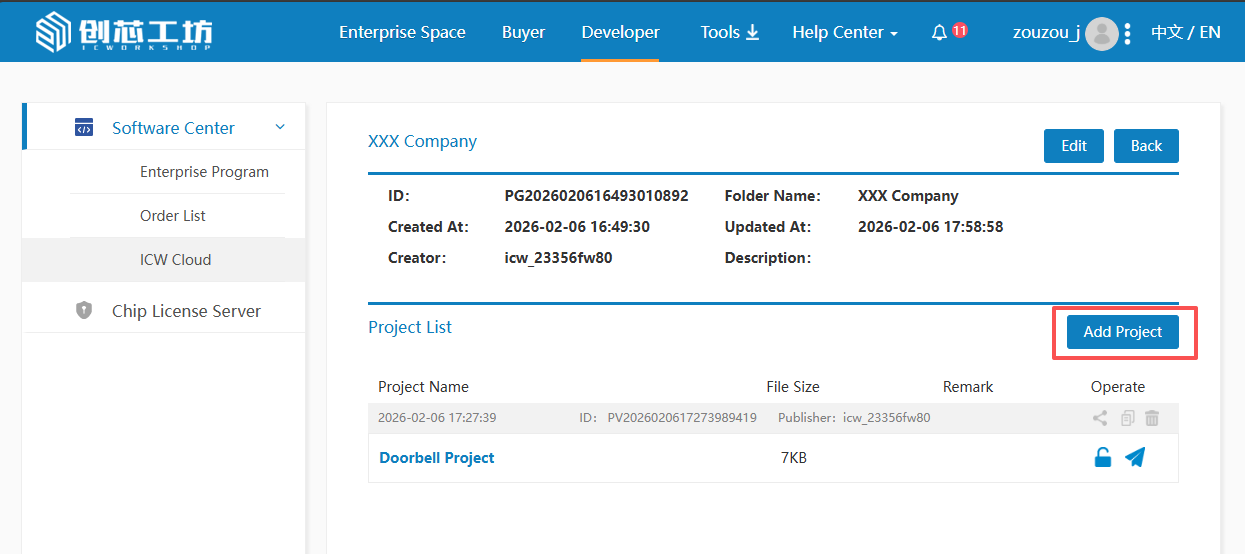
Double-click the file name to enter the folder, then click "Add Project".
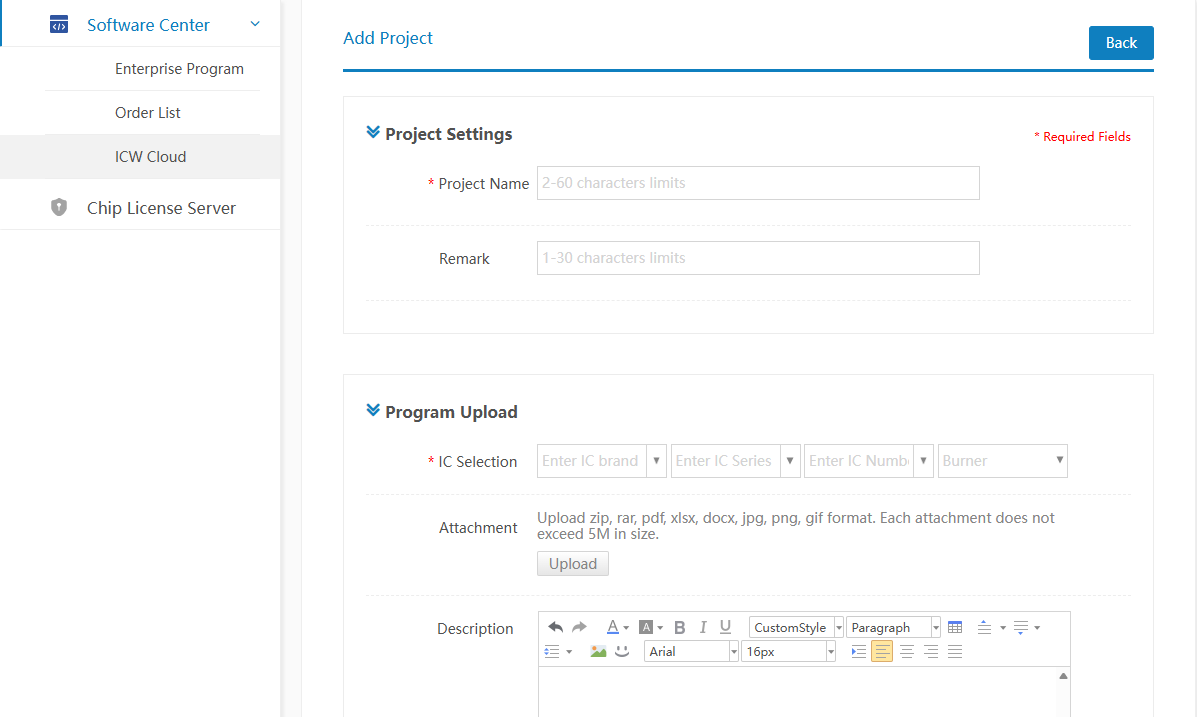
Fill in the project description as required and upload the completed solution program. You may also refer to the ICWorkshop Guide for further assistance.
Click “Submit” to finish program uploading. You may check all uploading programs from project list.
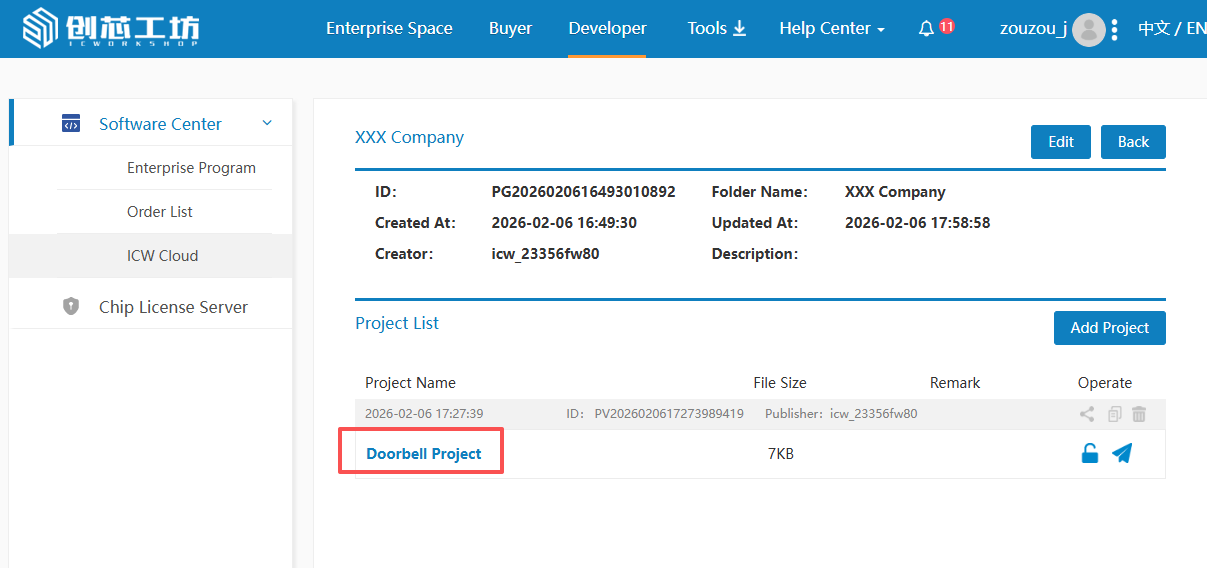
3.Instant Publish from ICW Cloud
In the project list on Chuangxin Cloud Drive:
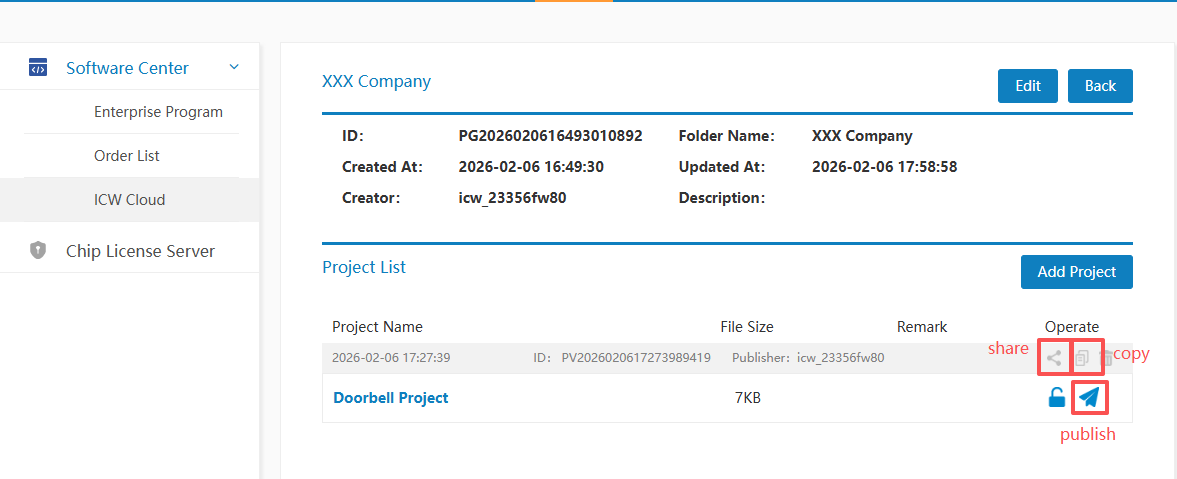
- Click the “Publish” button to go to the quick program publishing page. The published program will, by default, use the project name and description provided when the project was uploaded. Users can modify these fields as needed. Additionally, after filling in the program’s unit price, inventory, and target audience, you can proceed with the publication.
- Click the “Copy” button to quickly duplicate all settings of the selected project. You can then make minor adjustments to this copy to rapidly publish a new version.
4.ICW Cloud Program Sharing
4.1 Description
ICW Cloud allows the Developer to share programs with other Developers. The acceptor would receive the sharing notice, then review the shared program in sharing file folder to publish it.
If the Developer cancelled the program sharing, all related orders with previous shared program would be off-shelve automatically and not allowed to resale again. But the cancel won’t influence burning process from previous valid orders from donation or purchasing.
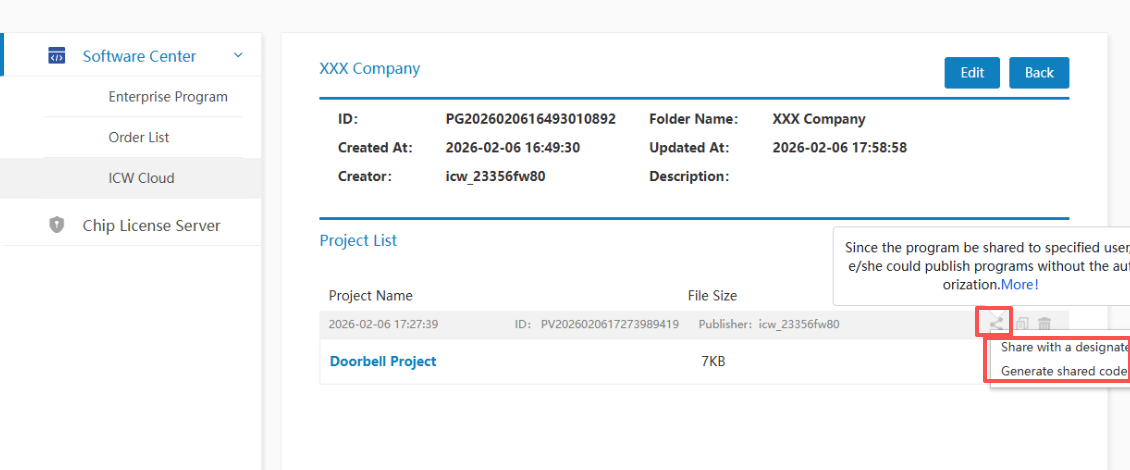
4.2 Sharing Instructions
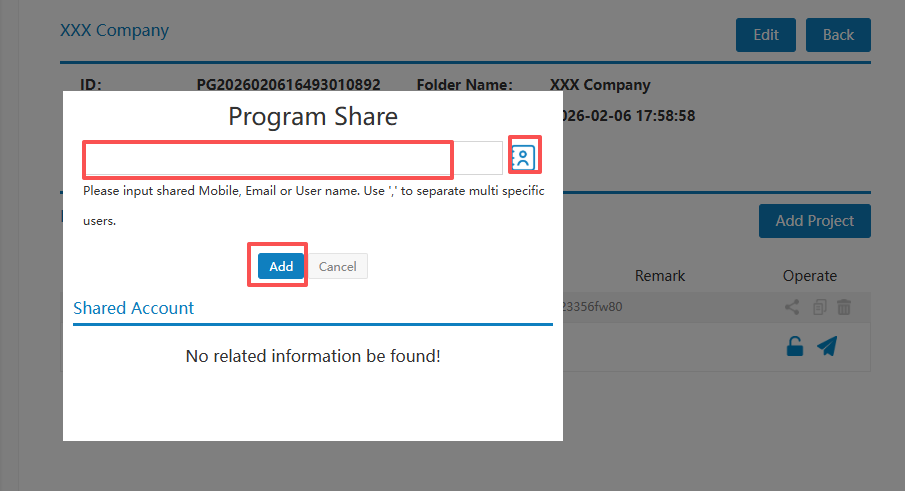
- Share with a designates: Enter the recipient's account name(s). For multiple recipients, separate the names with commas (","). You can also add recipients via the address book.
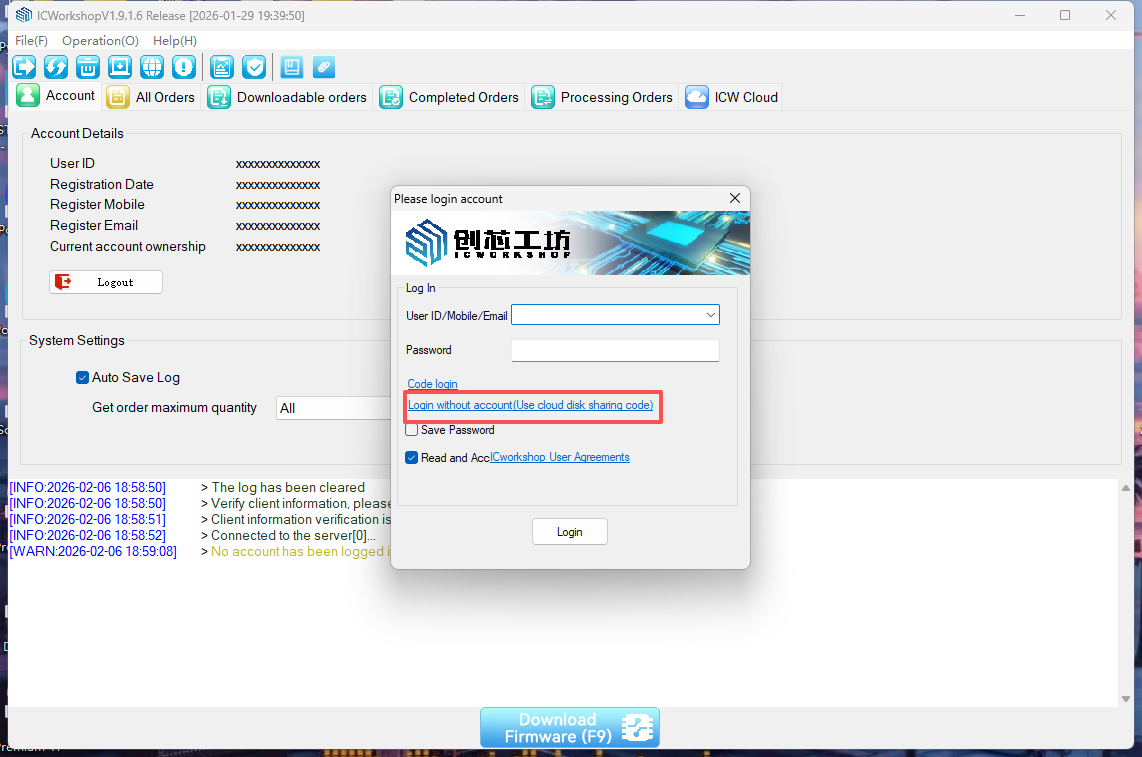
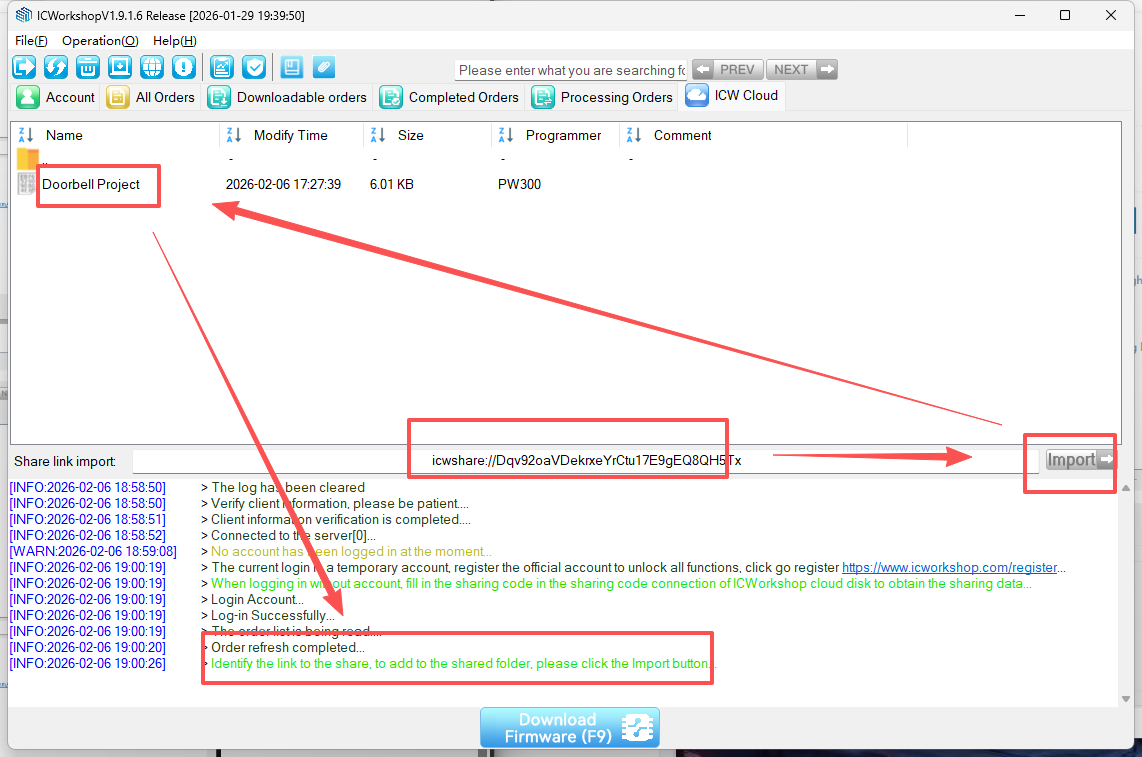
- Genaerate a shared code:After clicking "Genaerate a shared code," copy and send the code to the recipient. The recipient can then use this sharing code in the Chuangxin Workshop client software to receive the order and download the program.
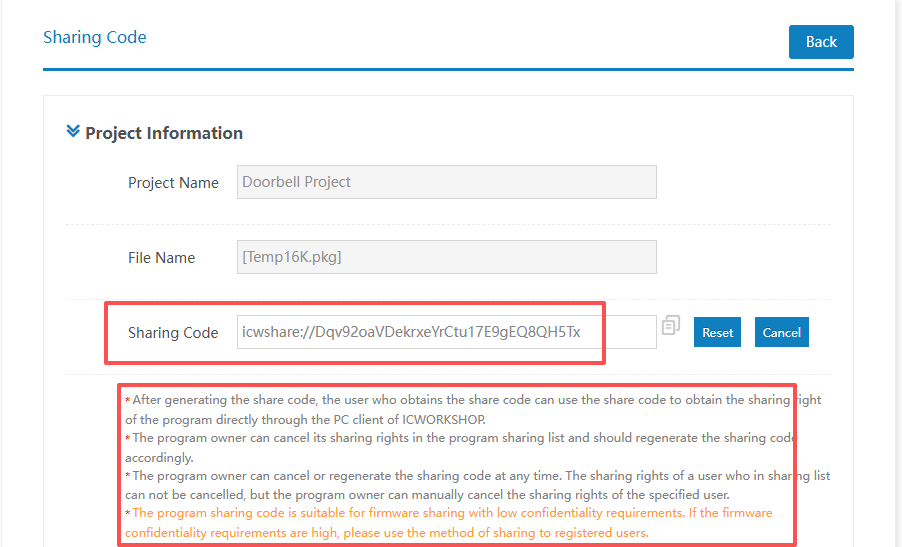
ICWorkshop client software supports both account login and guest (account-free) login modes.